StationOps Architect Guide
Architect is the AI-assisted infrastructure workspace in StationOps. It combines a chat assistant, an editable architecture diagram, environment views, cost context, repository import, AWS connection, draft saving, and deployment controls in one place.
Open Architect
- Open the StationOps dashboard.
- Choose the organisation and project you want to work on.
- Go to Architect in the project navigation.
-
StationOps creates or opens an Architect chat for the project.
You can also reach Architect from setup and troubleshooting paths, including deployment failures, logs, metrics, and infrastructure activity. When Architect opens from one of those contexts, it may preload a hidden system prompt or a visible message with the relevant project details.
Understand the Workspace
Architect has two main areas:
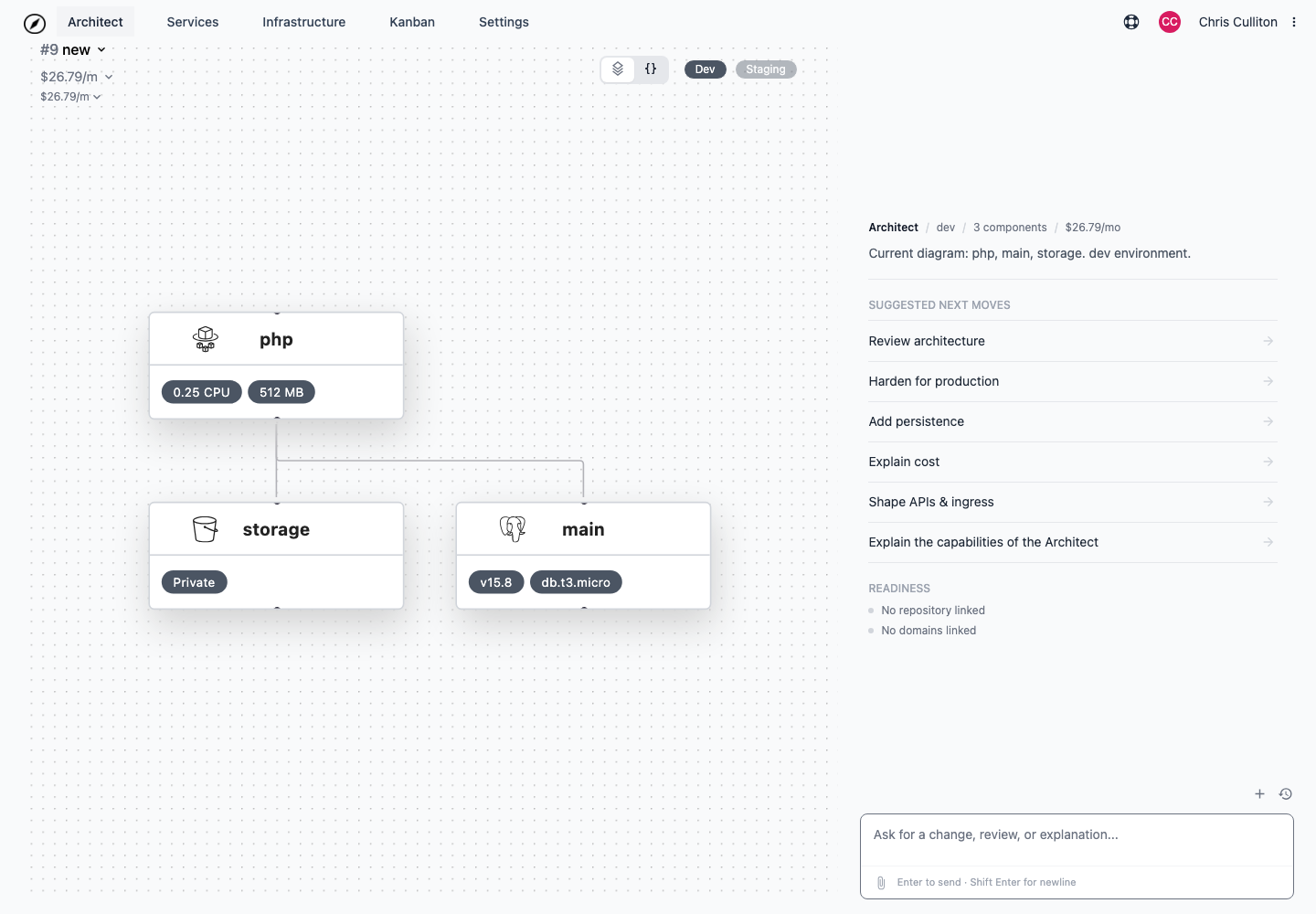
- The architecture diagram, where you review infrastructure components and switch environments.
- The chat panel, where you ask for changes, reviews, explanations, and deployment guidance.
When a project already has infrastructure, Architect opens with the current environment diagram, component count, estimated monthly cost, suggested next moves, and readiness items.
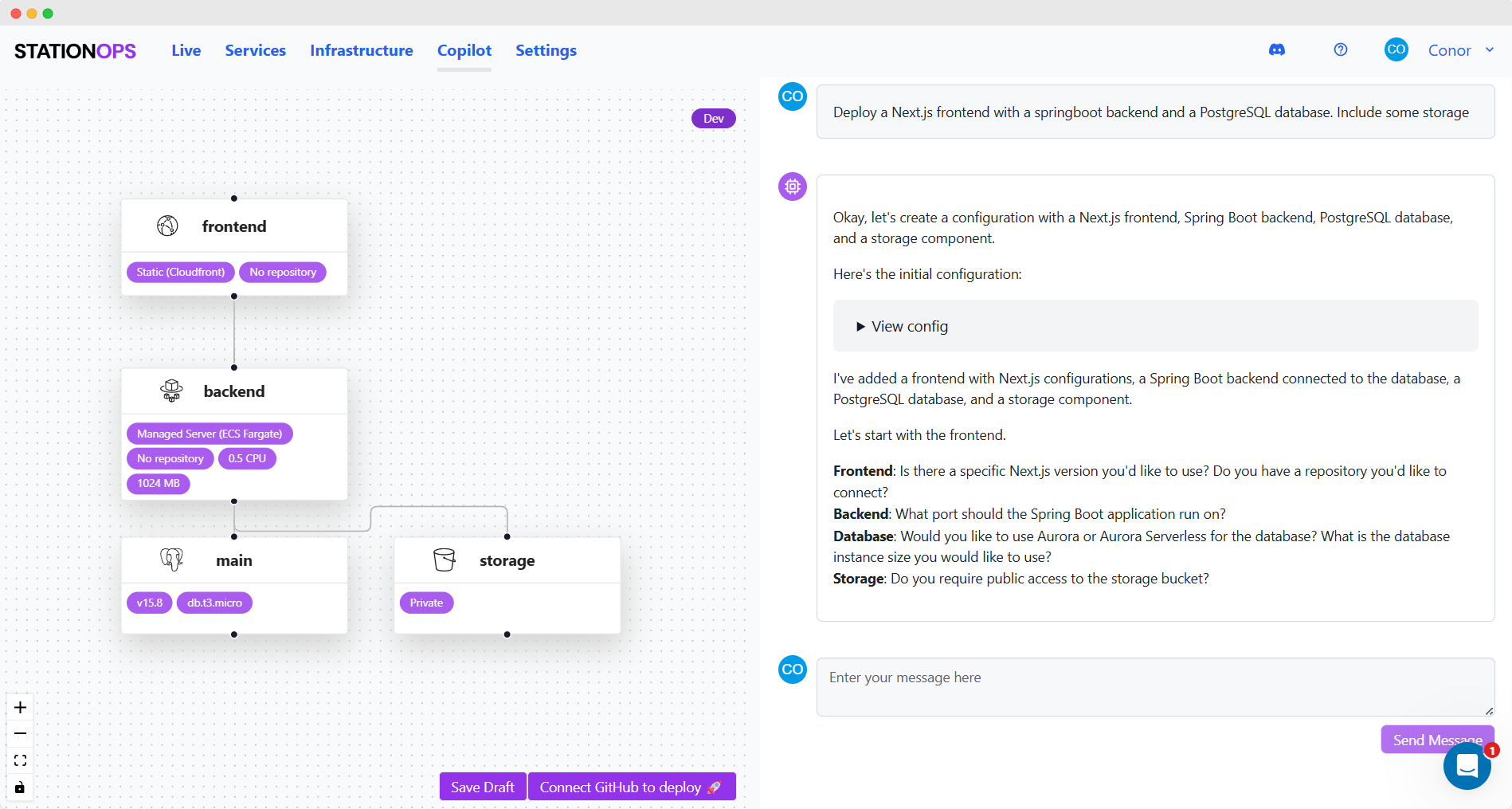
For new or onboarding projects, Architect also shows readiness items such as:
- Project created
- Draft infrastructure created
- Git repo connected or skipped
- AWS account connected
- Configuration reviewed
- Ready to deploy
Draft an Architecture
-
In the chat panel, describe the system you want to run.
-
Use a suggested next move if it fits your goal.
-
Attach project spec files when you want Architect to use existing written requirements.
-
Press Enter or click the send button.
-
Wait while Architect is thinking and creating a response.
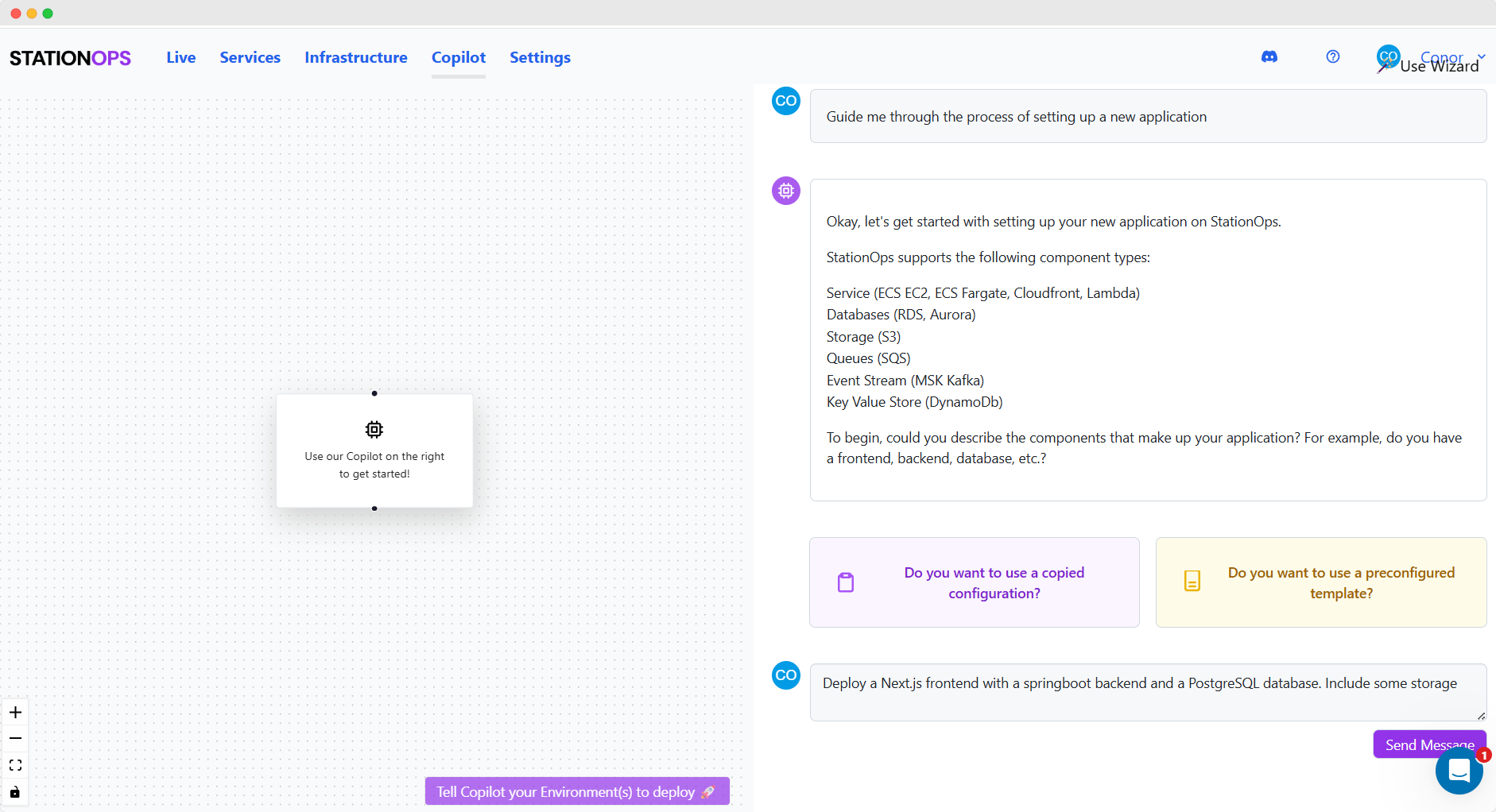
Example prompts:
Draft a minimal production-minded web app with a frontend, backend, database, SSL, and dev/prod environments.Import my repository before drafting infrastructure.Review this architecture for reliability, security, cost, and operational simplicity.Simplify this draft to the smallest deployable version.
Tip: Architect works best when you describe the application shape, repositories, environments, data stores, public/internal services, and deployment goals.
Apply or Refine Changes
Architect responses can include proposed infrastructure configuration changes. Review the response, then use the action buttons below the message when they appear.
- Click an action such as Apply, Generate configuration, or another suggested action when it matches your intent.
- Review the diagram after the change is applied.
- Ask a follow-up question or request another change.
Use the code toggle to inspect or edit the underlying configuration JSON. Save the JSON edit to apply it back to the draft.
When Architect changes the draft, use Changes to see what components were added, removed, or updated.
Edit the Diagram Manually
Architect is not chat-only. You can edit the draft directly from the diagram.
- Turn on Edit mode.
- Select a component to edit its settings.
- Click Add Component to add services, databases, storage, queues, caches, event streams, key-value stores, or Bedrock agents.
- Use the environment pills to review each environment.
-
Save the component changes.
Note: Manual edits and AI changes work on the same draft. You can ask Architect to explain, review, or revise changes after editing.
Import a Repository
Architect can start from repository detection instead of a blank prompt.
- In Architect, open the connection or add menu.
- Choose Connect GitHub repo or Connect GitLab repo.
- Authorize the repository connection.
- Select the repository and branch to inspect.
-
Let Architect detect services and create a deployable starting configuration.
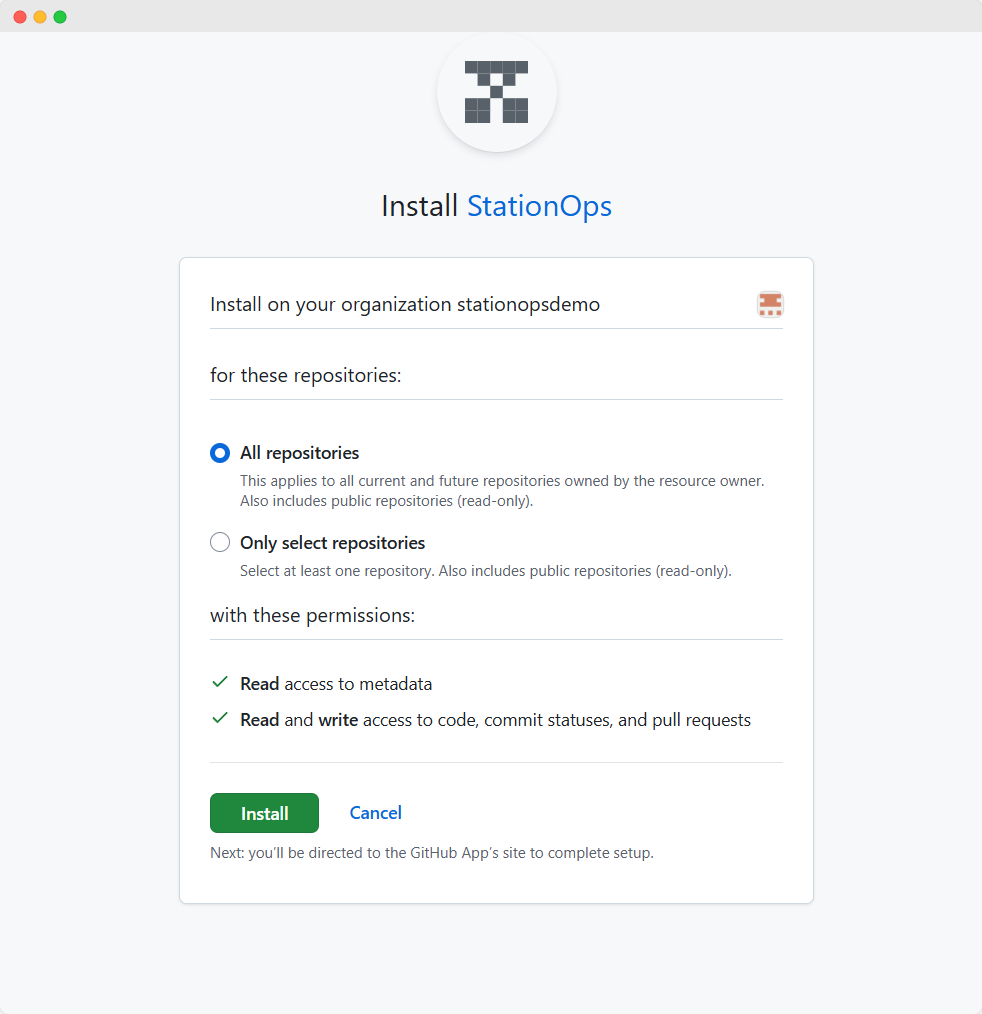
Note: If you started onboarding with Import repository, Architect waits for the repository connection before drafting infrastructure.
Connect AWS
Architect needs an AWS project configuration before it can deploy.
- Click Deploy to environment from Architect, or open Settings > AWS.
- If the project does not have an AWS configuration yet, click Create.
- In the AWS configuration flow, choose an existing AWS connection and region.
- If needed, create a new AWS connection and authorize the StationOps CloudFormation stack in AWS.
-
Return to StationOps and save the project AWS configuration.
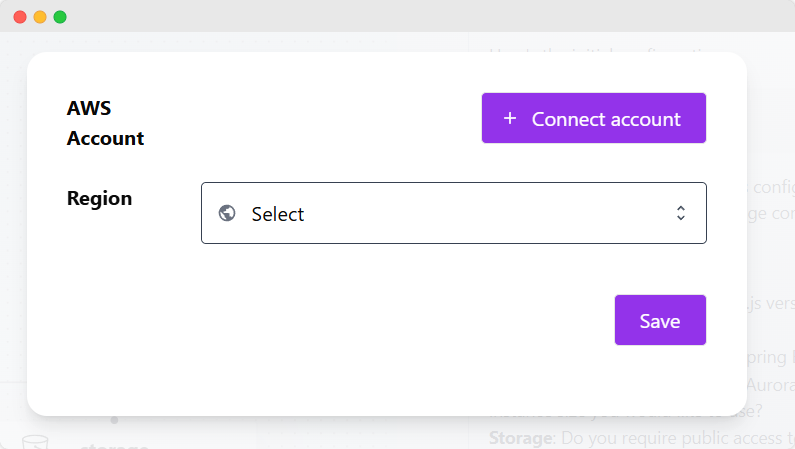

Important: The AWS account must allow StationOps to create the infrastructure resources in your draft.
Connect Domains
- Open Connect.
- Click Connect domains.
- Configure the domain for the active environment.
- Save the domain settings.
Architect can then account for domain and routing requirements while reviewing or updating the infrastructure.
Save a Draft
Use drafts when the architecture is not ready to deploy yet.
- Click Save Draft.
- Enter a configuration name.
- Click Save Draft .
-
StationOps opens the saved infrastructure configuration.
Tip: Saving a draft is useful before making larger AI or manual changes.
Deploy from Architect
- Select the environment you want to deploy with the environment pills.
- Click Deploy to environment.
- Enter or confirm the configuration name.
- If StationOps asks for root account emails, provide the required account email addresses or use Quick Add +.
- Click Confirm .
-
StationOps creates the infrastructure configuration and launches the infrastructure deployment.
Note: If no AWS connection exists, Architect opens AWS configuration before showing the deployment confirmation.
Use Activity and Live Context
The Architect workspace can also show project activity and deployed infrastructure context.
- Open the Activity panel to see recent project events.
- Select an activity item to inspect details.
- Ask Architect to explain failures, logs, metrics, or deployment changes.
- Switch back to the Architect panel to ask for a fix or configuration update.
This is the same workflow used when Architect opens from logs, metrics, service deploy failures, or infrastructure revision screens.
Tips for Better Results
- Be specific about the application shape, traffic path, and deployment environments.
- Attach concise project specification files for requirements-heavy projects.
- Ask Architect to review cost, security, reliability, and operational simplicity before deploying.
- Keep the first draft small, then add components as the project needs them.
- Use Save Draft before risky or broad changes.
Architect can draft the first topology, help import repositories, explain configuration tradeoffs, apply infrastructure changes, and launch the first deployment from the same workspace.